Posted by João Martins on 13 Apr 2026
Tailwind CSS Contact Form to Google Sheets
Create a modern Tailwind CSS contact form that saves responses to Google Sheets
Tailwind CSS gives you full design control with utility classes. Pair it with Form2Sheet and you get a custom-styled contact form that sends data straight to Google Sheets — no backend, no hassle.
In this tutorial, I will guide you through the process of building a Tailwind CSS contact form that sends submissions directly to Google Sheets using Form2Sheet.
Step 1: Prerequisites
The first step in integrating Form2Sheet is to subscribe either monthly or yearly.
Then, go to https://form2sheet.com and create your first
spreadsheet.
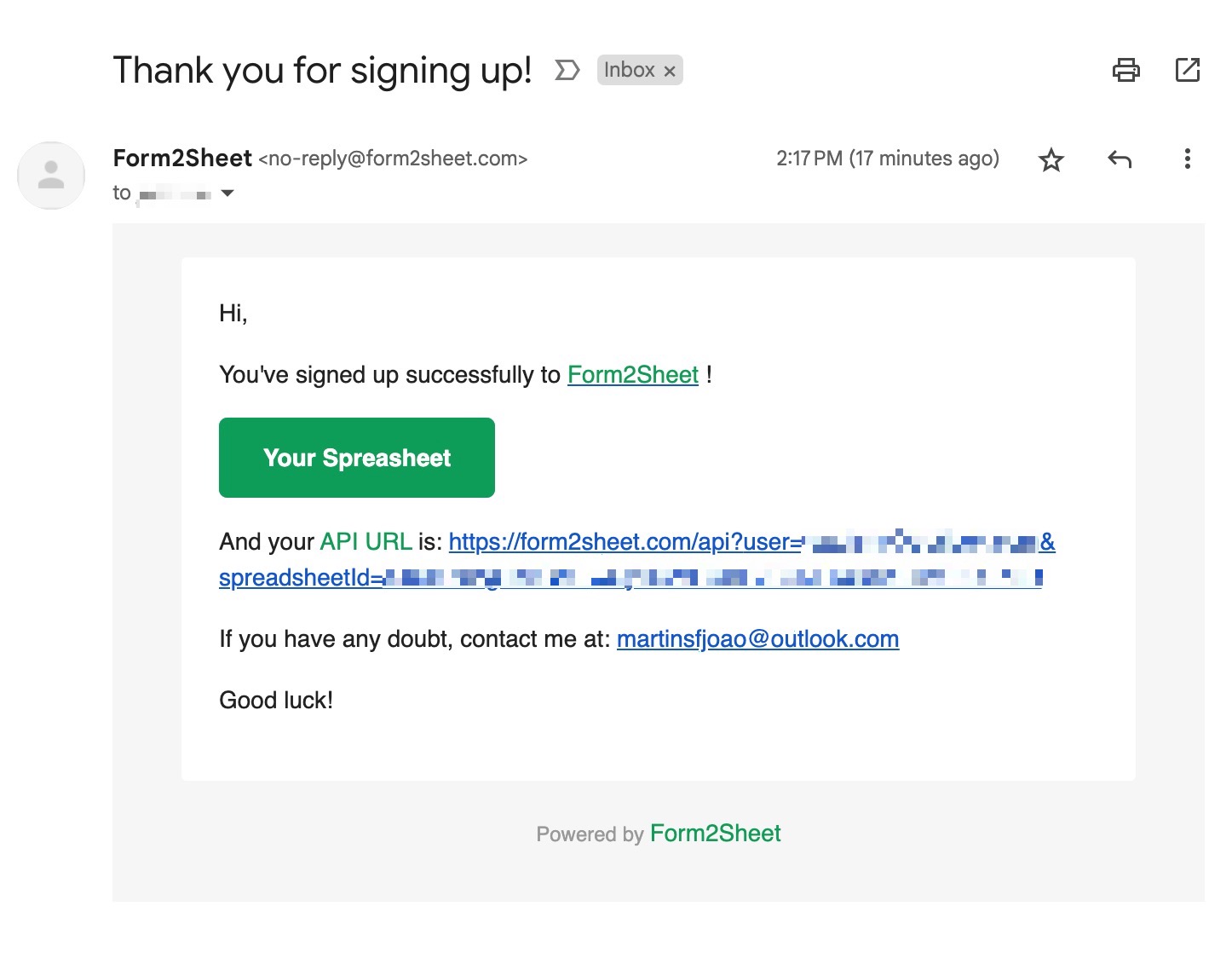
(Email received after creating a spreadsheet)
Step 2: Building Your Tailwind CSS Contact Form
Tailwind CSS uses utility classes for full design control. Include the Tailwind CDN script and apply utility classes to your form elements for a modern look. Make sure to replace the $API_URL with the one you received
in your email (check your spam folder as well).
<script src="https://cdn.tailwindcss.com"></script>
<div class="max-w-md mx-auto mt-10 p-6 bg-white rounded-lg shadow-md">
<form action="" method="" class="space-y-4">
<div>
<label class="block text-sm font-medium text-gray-700">Name</label>
<input type="text" name="" class="mt-1 block w-full rounded-md border-gray-300 shadow-sm focus:border-indigo-500 focus:ring-indigo-500 p-2 border" required />
</div>
<div>
<label class="block text-sm font-medium text-gray-700">E-mail</label>
<input type="email" name="" class="mt-1 block w-full rounded-md border-gray-300 shadow-sm focus:border-indigo-500 focus:ring-indigo-500 p-2 border" required />
</div>
<div>
<label class="block text-sm font-medium text-gray-700">Message</label>
<textarea name="" rows="4" class="mt-1 block w-full rounded-md border-gray-300 shadow-sm focus:border-indigo-500 focus:ring-indigo-500 p-2 border" required></textarea>
</div>
<button type="submit" class="w-full bg-indigo-600 text-white py-2 px-4 rounded-md hover:bg-indigo-700">Submit</button>
</form>
</div>
Step 3: Submitting the Form
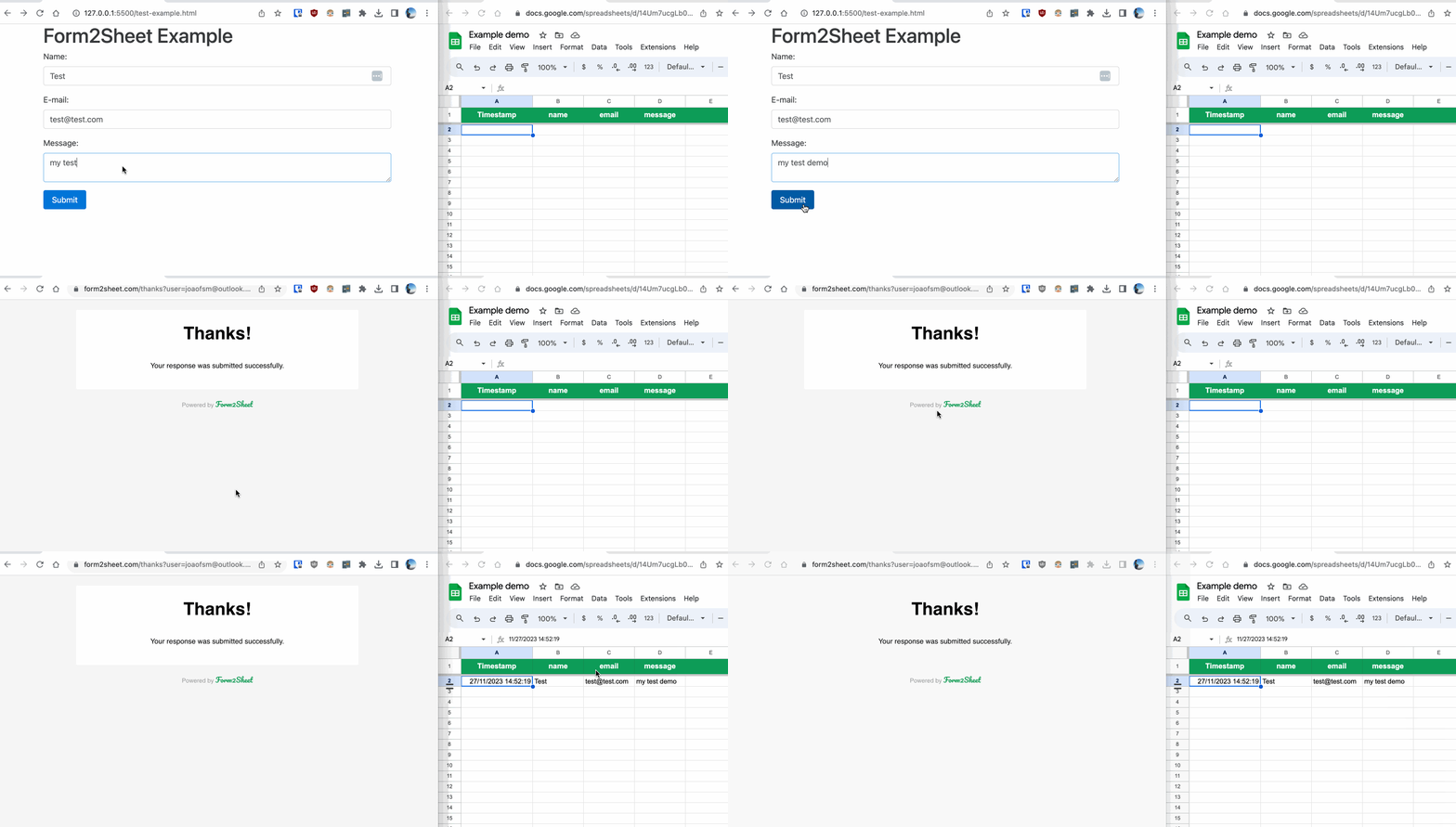
In the GIF below, you can see how after submitting the form you check the results in
your Spreadsheet.
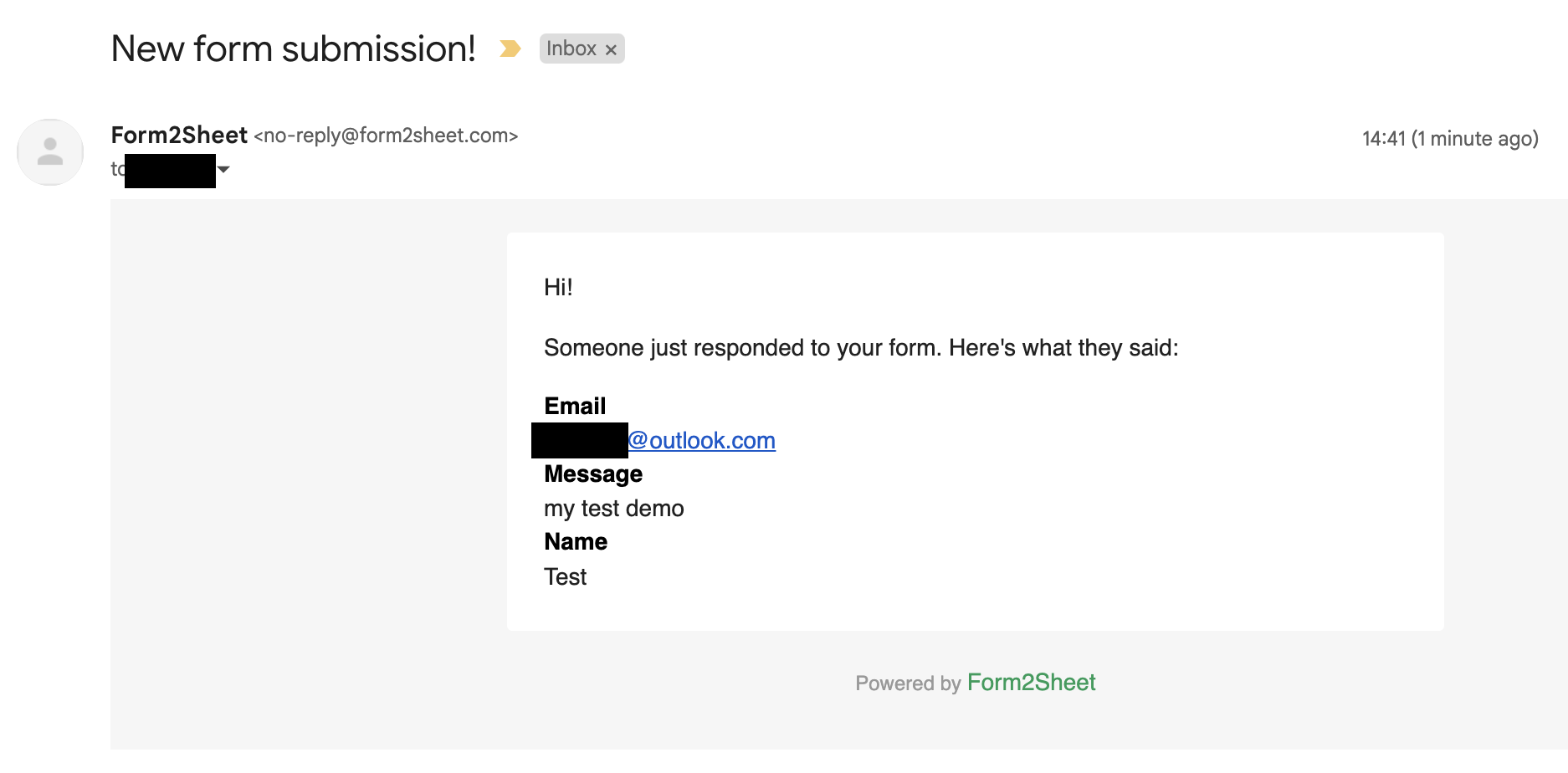
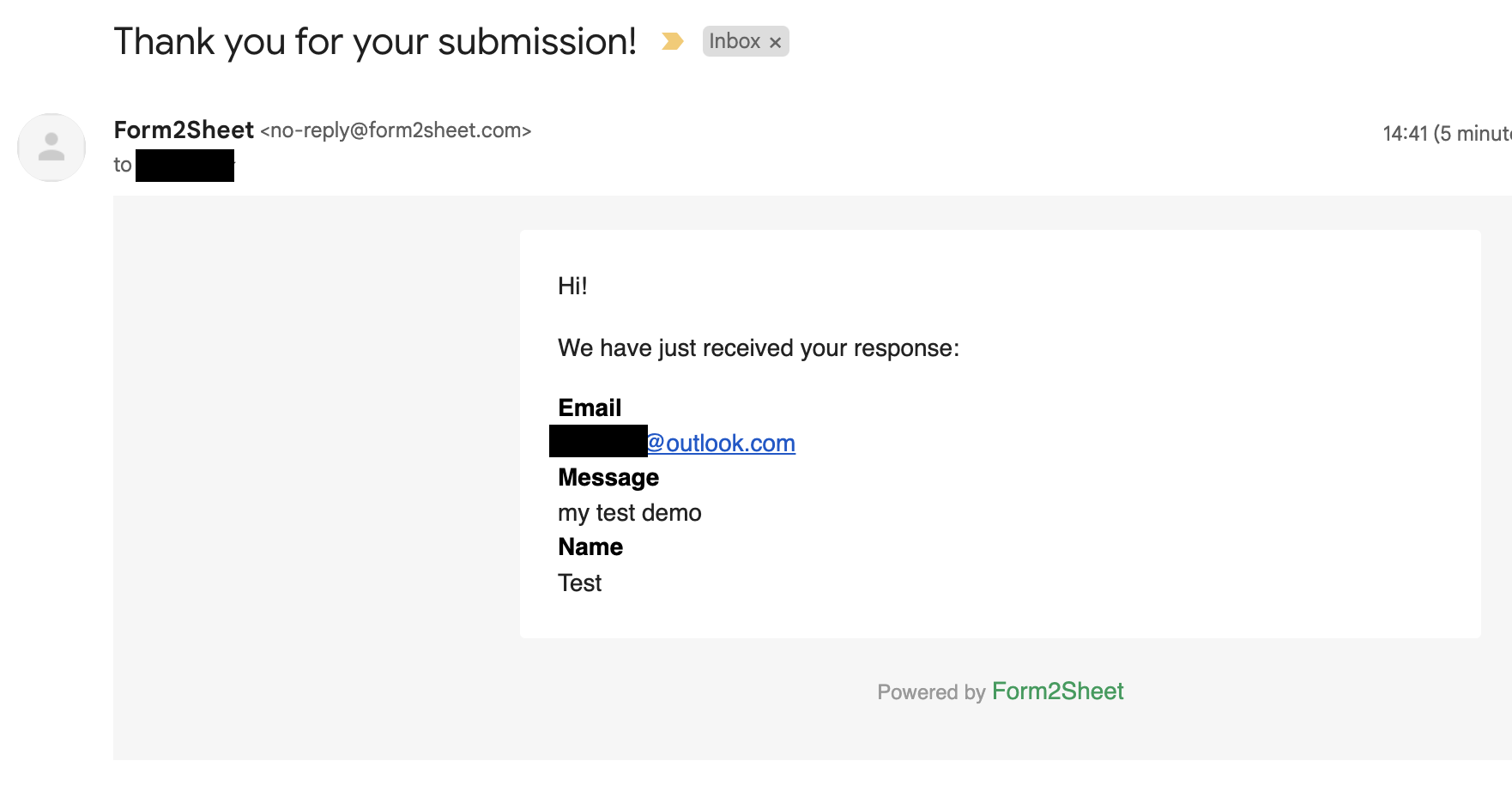
Besides that, you and the respondent will receive a confirmation email with the data
submitted.
And that's is! Simple as that. Aditionally, you can create Unlimited Spreadsheets, customize the Thank You page, add as many Custom Form Fields as you want and remove the Form2Sheet branding from the emails.

Conclusion
Congratulations! You can now go ahead and publish your Tailwind CSS contact form. It is now
ready to start collecting responses. With
Form2Sheet, the process is streamlined, and you can focus on obtaining valuable data
without
the hassle of complicated setups.
If this made you curious, go ahead and check our pricing below.