Posted by João Martins on 13 Apr 2026
AJAX Form Submission to Google Sheets
Submit forms in the background — no page reload, no jQuery required
Nobody likes a full page refresh after submitting a form. With AJAX, your form data is sent to Google Sheets in the background while your user stays on the same page. This guide shows you two ways to do it — the classic XMLHttpRequest and the modern Fetch API — both working with Form2Sheet out of the box.
Step 1: Prerequisites
The first step in integrating Form2Sheet is to subscribe either monthly or yearly.
Then, go to https://form2sheet.com and create your first
spreadsheet.
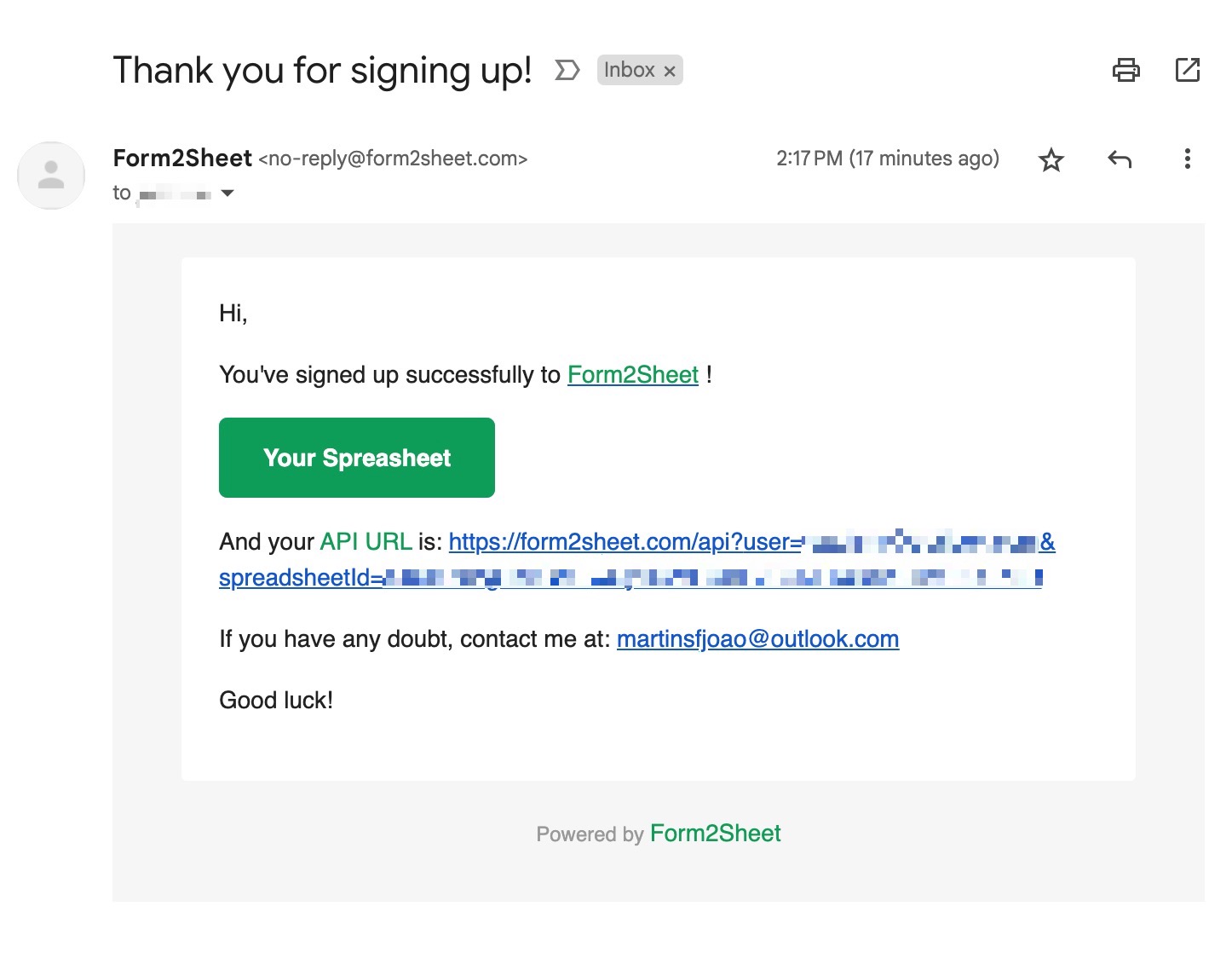
(Email received after creating a spreadsheet)
Step 2: Option A — Using the Fetch API (Recommended)
The Fetch API is the modern, promise-based way to make AJAX requests. It's supported in all current browsers and doesn't need any library. This example includes a loading state, error handling, and automatic form reset on success. Replace the $API_URL with the one you received
in your email (check your spam folder as well).
<form id="my-form">
<label>Name:</label>
<input type="text" name="name" required />
<label>Email:</label>
<input type="email" name="email" required />
<label>Message:</label>
<textarea name="message"></textarea>
<button type="submit" id="submit-btn">Send</button>
</form>
<p id="status" style="display:none;"></p>
<script>
const form = document.getElementById('my-form');
const btn = document.getElementById('submit-btn');
const status = document.getElementById('status');
form.addEventListener('submit', async (e) => {
e.preventDefault();
btn.disabled = true;
btn.textContent = 'Sending...';
status.style.display = 'none';
try {
const res = await fetch('', {
method: 'POST',
body: new FormData(form)
});
if (!res.ok) throw new Error('Server error');
status.textContent = 'Thank you! Your response has been recorded.';
status.style.color = 'green';
form.reset();
} catch (err) {
status.textContent = 'Something went wrong. Please try again.';
status.style.color = 'red';
} finally {
btn.disabled = false;
btn.textContent = 'Send';
status.style.display = 'block';
}
});
</script>
Step 2: Option B — Using XMLHttpRequest (Legacy)
If you need to support very old browsers or are working with a legacy codebase, XMLHttpRequest is the original AJAX method. It's more verbose but works everywhere.
<form id="my-form">
<label>Name:</label>
<input type="text" name="name" required />
<label>Email:</label>
<input type="email" name="email" required />
<label>Message:</label>
<textarea name="message"></textarea>
<button type="submit" id="submit-btn">Send</button>
</form>
<p id="status" style="display:none;"></p>
<script>
var form = document.getElementById('my-form');
var btn = document.getElementById('submit-btn');
var status = document.getElementById('status');
form.addEventListener('submit', function(e) {
e.preventDefault();
btn.disabled = true;
btn.textContent = 'Sending...';
var xhr = new XMLHttpRequest();
xhr.open('POST', '');
xhr.onload = function() {
if (xhr.status === 200) {
status.textContent = 'Thank you! Submitted successfully.';
status.style.color = 'green';
form.reset();
} else {
status.textContent = 'Something went wrong.';
status.style.color = 'red';
}
btn.disabled = false;
btn.textContent = 'Send';
status.style.display = 'block';
};
xhr.onerror = function() {
status.textContent = 'Network error. Please try again.';
status.style.color = 'red';
status.style.display = 'block';
btn.disabled = false;
btn.textContent = 'Send';
};
xhr.send(new FormData(form));
});
</script>
Step 3: Submitting the Form
In the GIF below, you can see how after submitting the form you check the results in
your Spreadsheet.
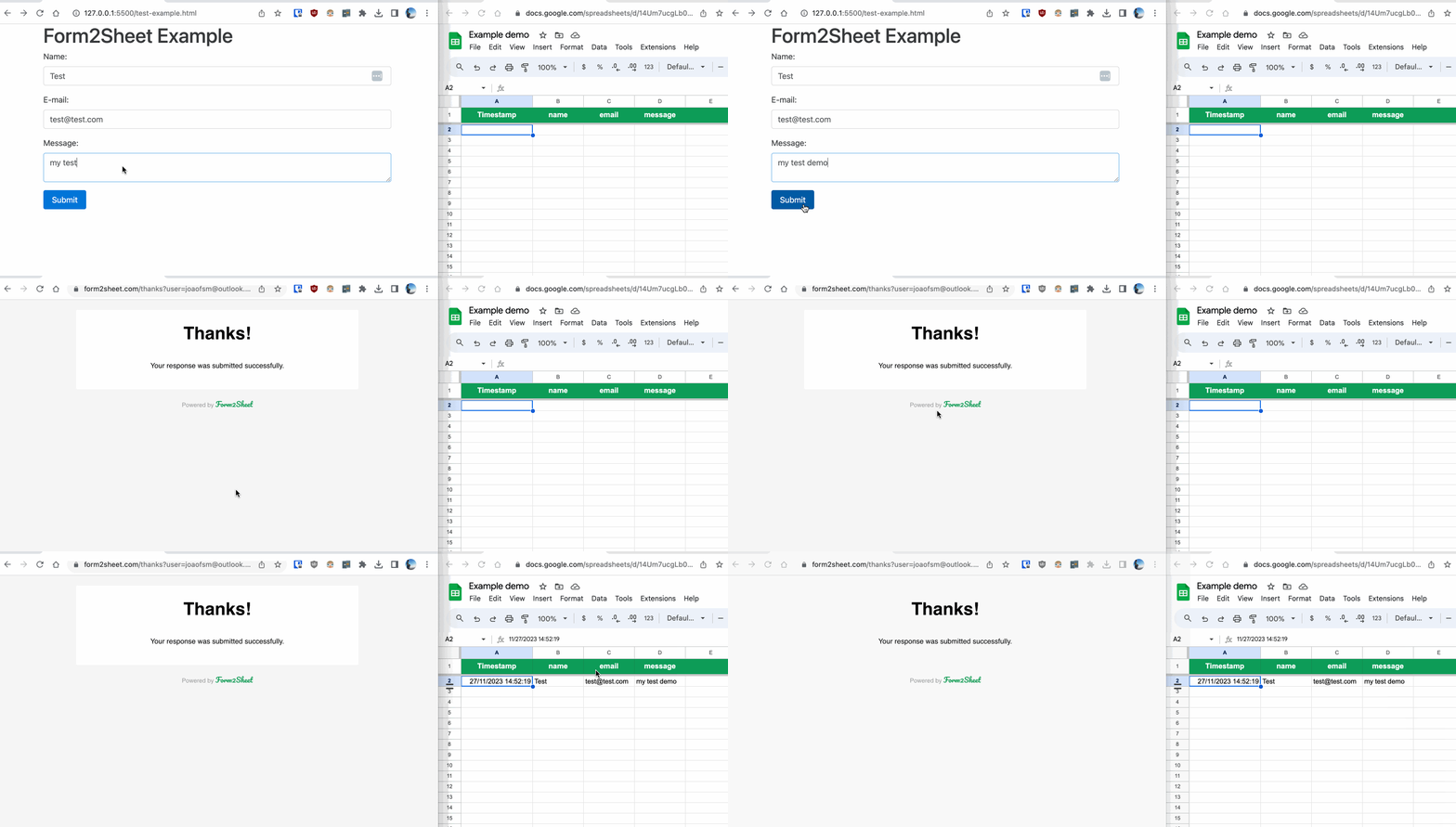
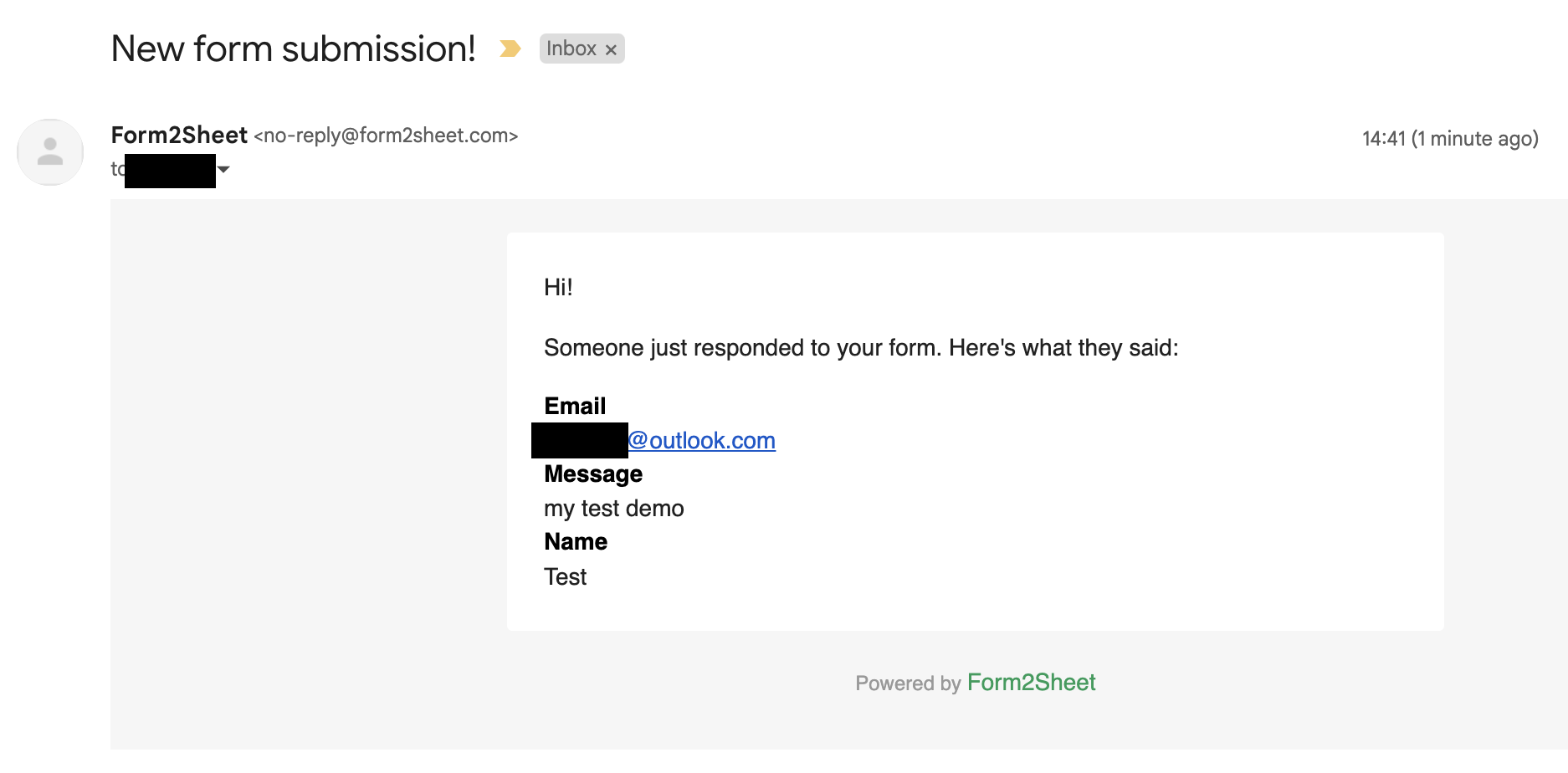
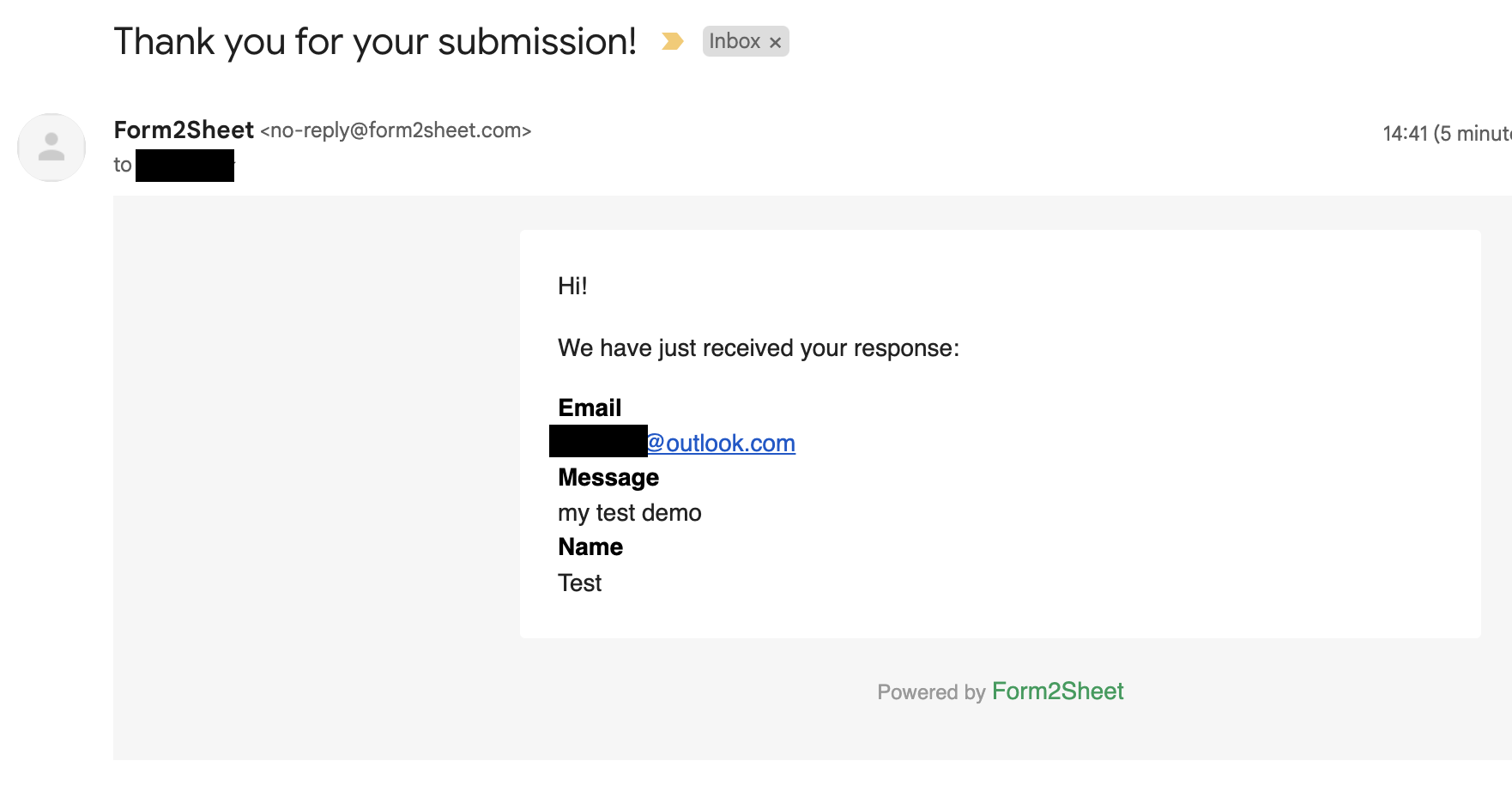
Besides that, you and the respondent will receive a confirmation email with the data
submitted.
And that's it! Both approaches send data in the background and keep your user on the page. The Fetch API version is cleaner and recommended for new projects, while XMLHttpRequest works if you need legacy browser support.

Conclusion
You now have two production-ready AJAX approaches for submitting forms to Google Sheets without reloading the page. Pick the one that fits your project and publish your form — it's ready to collect responses.
If this made you curious, go ahead and check our pricing below.