Posted by João Martins on 13 Apr 2026
How to Submit a React Form to Google Sheets
Connect your React forms to Google Sheets using Form2Sheet - no backend needed
React is the most popular frontend framework for building modern web applications, and forms are a core part of nearly every project.
With Form2Sheet, you can connect your React forms directly to Google Sheets without building a backend or writing any server-side code.
In this tutorial, you'll learn how to use React's useState hook and the fetch API to submit form data to Google Sheets via Form2Sheet - making your data collection workflow dead simple and production-ready.
Step 1: Prerequisites
The first step in integrating Form2Sheet is to subscribe either monthly or yearly.
Then, go to https://form2sheet.com and create your first
spreadsheet.
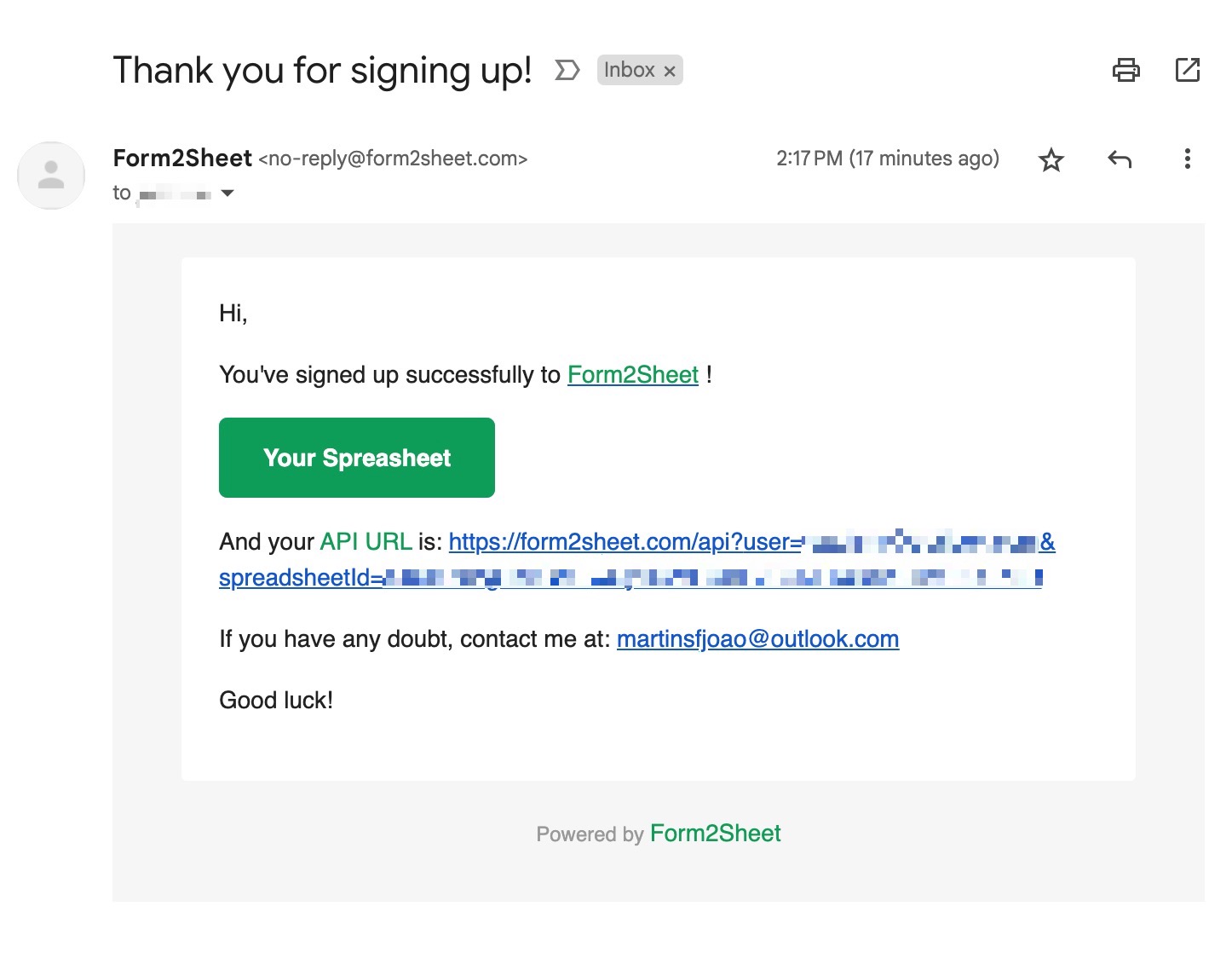
(Email received after creating a spreadsheet)
Step 2: Building Your React Form Component
With React, you can manage form state using the useState hook and submit data using the fetch API. Create a new component and use FormData to POST your form fields to the Form2Sheet API URL. Make sure to replace the $API_URL with the one you received
in your email (check your spam folder as well).
import { useState } from 'react';
function ContactForm() {
const [formData, setFormData] = useState({
name="": '', name="": '', name="": ''
});
const handleChange = (e) => {
setFormData({ ...formData, [e.target.name]: e.target.value });
};
const handleSubmit = async (e) => {
e.preventDefault();
const form = new FormData();
Object.entries(formData).forEach(([key, val]) => form.append(key, val));
await fetch('', { method: 'POST', body: form });
alert('Form submitted successfully!');
};
return (
<form onSubmit={handleSubmit}>
<label>Name:</label>
<input type="text" name="name" value={formData.name} onChange={handleChange} />
<label>E-mail:</label>
<input type="email" name="email" value={formData.email} onChange={handleChange} />
<label>Message:</label>
<textarea name="message" value={formData.message} onChange={handleChange}></textarea>
<button type="submit">Submit</button>
</form>
);
}
Step 3: Submitting the Form
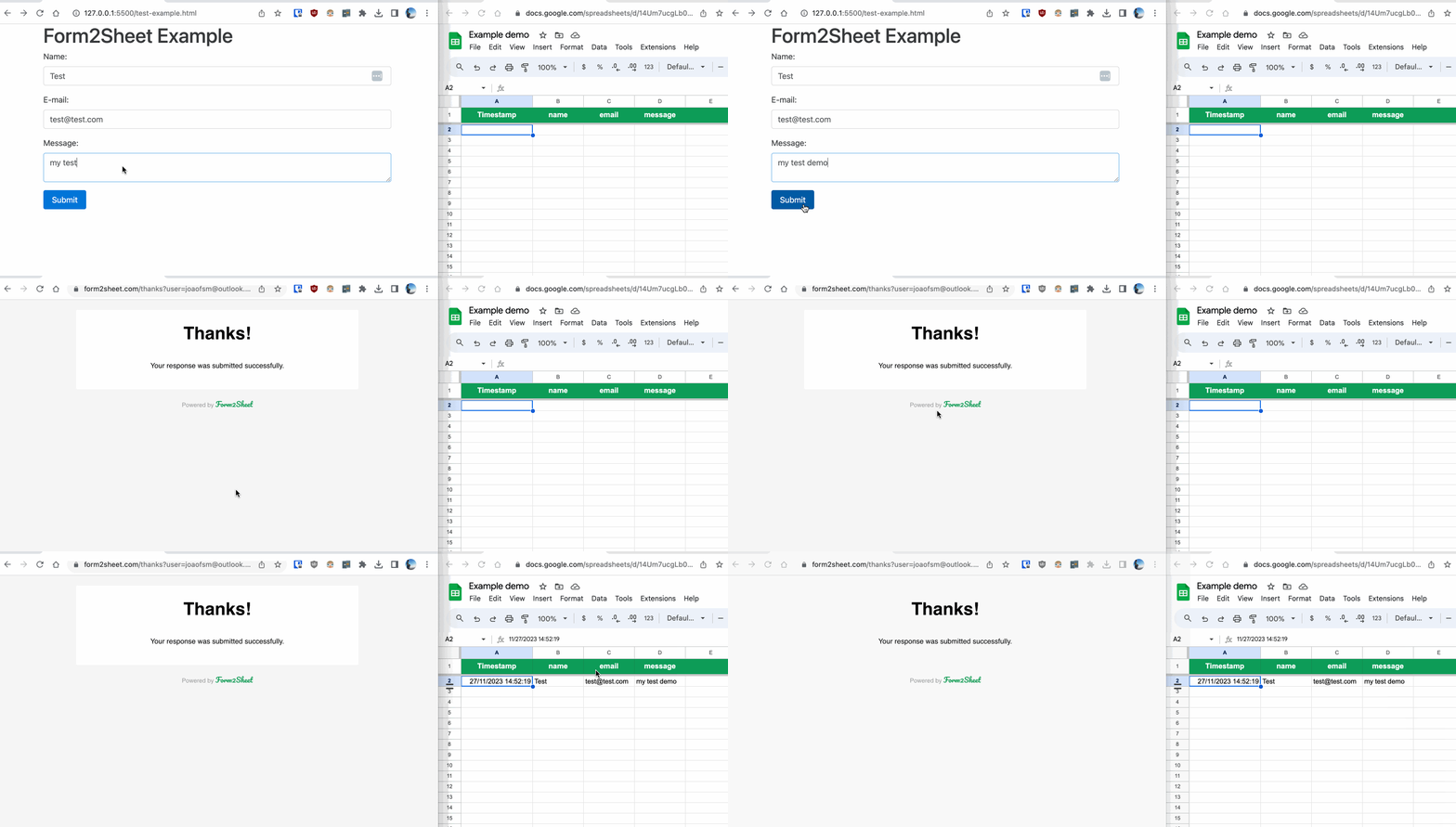
In the GIF below, you can see how after submitting the form you check the results in
your Spreadsheet.
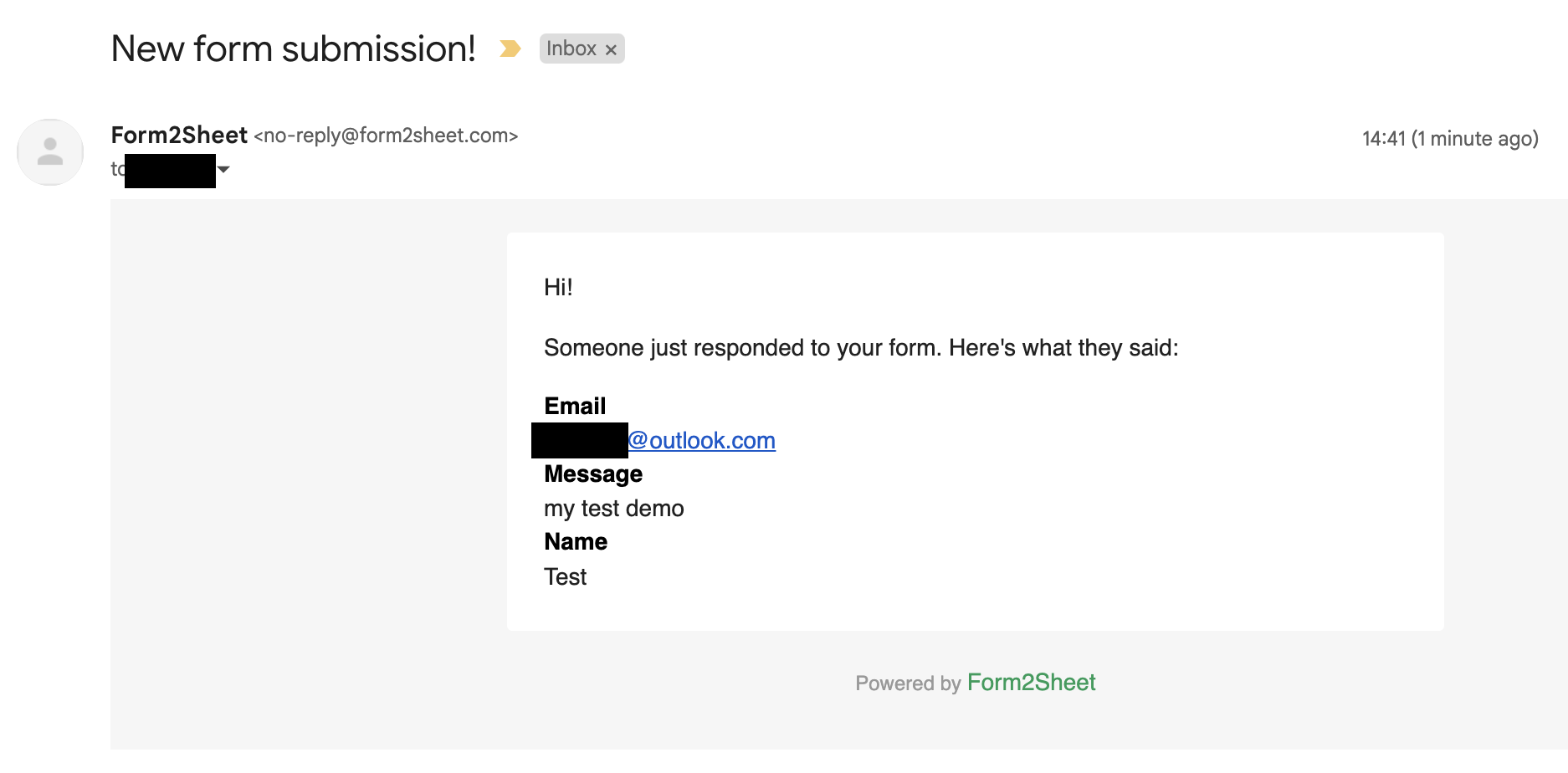
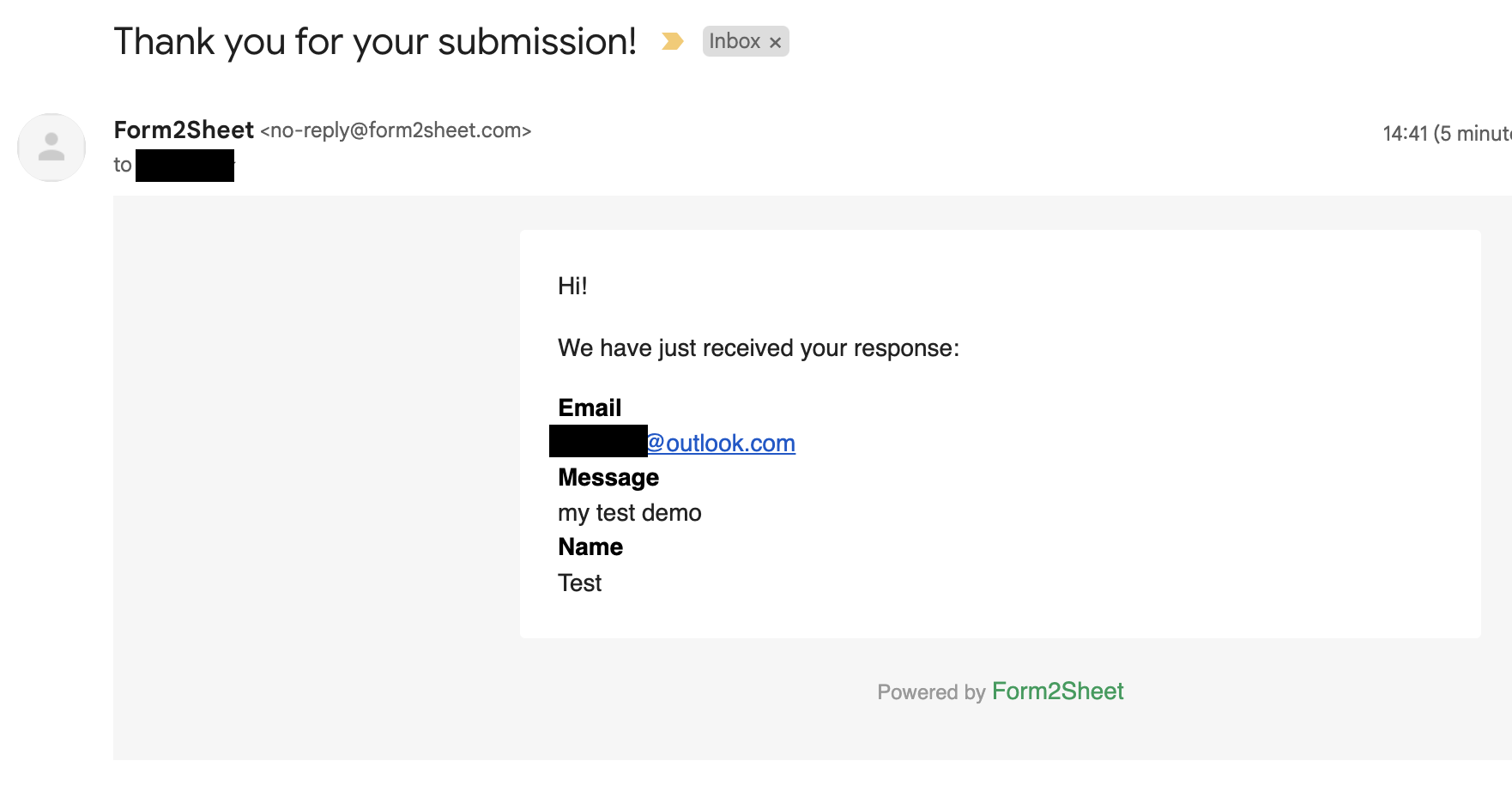
Besides that, you and the respondent will receive a confirmation email with the data
submitted.
And that's is! Simple as that. Aditionally, you can create Unlimited Spreadsheets, customize the Thank You page, add as many Custom Form Fields as you want and remove the Form2Sheet branding from the emails.

Conclusion
Congratulations! You now know how to submit a React form to Google Sheets using Form2Sheet. With just useState, fetch, and a few lines of code, your React app can collect form responses directly into a spreadsheet - no backend required.
If this made you curious, go ahead and check our pricing below.
Related Guides: